Introduction
I rebuild this setup often enough — a new laptop, a new project, helping someone else get started — that it’s worth writing down once. This is the toolkit I run around Claude Code (and opencode, when I want a second harness on the same repo): the MCP servers, the hooks, and the handful of CLI tools and skills that turn a capable coding agent into one I actually trust to work on its own.
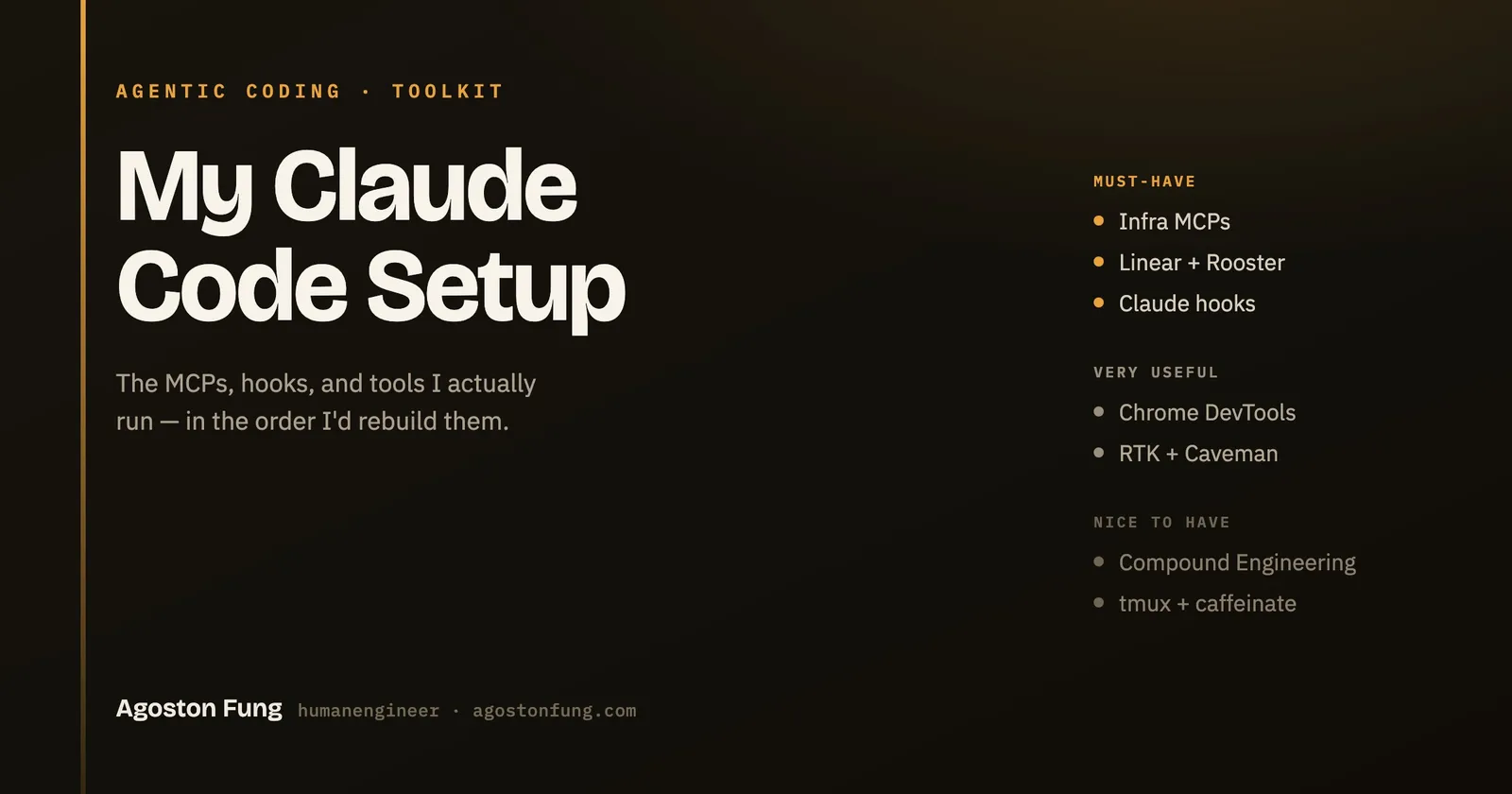
I’ve ordered everything by how much I’d miss it. If I were setting up from scratch tomorrow, this is the sequence I’d follow — the must-haves first, because those change how the agent works, not just how fast it types.
Must-have tools
While I consider everything in this article essential, the tools help in different ways, so I’ve grouped them by how much they earn their place. If I ever land somewhere new and have to rebuild my setup, this is the order I’d do it in.
Infrastructure MCPs — Supabase, Vercel, Modal
I put infra MCPs at number one because these tools are the single biggest time savers for me. Before having these MCPs, I would manually visit a dashboard for logs, manually try to select the correct time, and/or filter to errors and see if I can match a production issue. I know there are a lot of automations in place that would help — CLI, grep — and if you are a renegade engineer you probably don’t have the problem of accessing the logs quickly, but still, analysing them takes a long time.
Right now, I just ask my agent to pull the logs and analyse them. We also have scheduled tasks that run and pick up errors and automatically analyse, fix, and create a PR that just waits for review.
How much access you give to these tools is also important. I keep them on a short leash — read-only wherever I can — and the leash is different per provider.
For Supabase it’s not just a convention: the server takes a --read-only flag. My production connection runs with it, so a query through execute_sql is forced into a read-only transaction and the write tools — migrations, edge-function deploys, the branch operations — aren’t exposed at all. The full write surface only exists on the staging connection, which is where those changes belong anyway.
Vercel is the opposite story: there is no read-only mode. Connecting grants the same access as your Vercel user account, and some of the write tools spend money. The only controls are coarse — OAuth consent per client, and access tokens scoped to specific projects (a token can either touch a project or not; there’s no per-tool or read-only scoping) — so the practical guard is keeping the token project-scoped and confirming each call by hand.
Supabase
I run two connections, and the split matters more than any single tool. Production is read-only: the agent can get_logs, read get_advisors, list the schema, and run a SELECT through execute_sql — but it physically cannot write, because the write tools aren’t even exposed. That’s the connection I reach for constantly, to answer “is the data actually shaped the way this bug report says?” without leaving the session and without any chance of mutating prod while I’m at it. Staging is the read/write one, where migrations and branch operations live.
Vercel
This is where the agent pulls deploy and runtime logs. It’s the tool that replaced the old ritual — open the dashboard, guess the time window, filter to errors, copy something back — with “pull the runtime logs for the last hour and tell me what broke.” get_deployment_build_logs, get_runtime_logs, and get_runtime_errors do most of that work. Because there’s no read-only mode (see the access note above), I keep the token project-scoped and confirm each call.
Modal
The heavy compute runs on Modal, and the MCP lets the agent see it: list volumes, list a volume’s contents, and read the files a run produced. It’s less a daily driver than Supabase and Vercel and more the thing I want when a job wrote something I need to inspect — the agent can read the artifact directly instead of me shelling in to fetch it.
What Works Well / Limitations
The win is that the agent reasons about real infrastructure state instead of guessing from the code. The flip side is that a broad-access MCP is a genuine surface area — which is exactly why prod is read-only and tokens are project-scoped. The other cost is volume: every tool call is a round trip, and a log query on a busy project can come back large. That’s precisely where a token-compression tool earns its place (more on that below).
Project Management — Linear and Rooster
Type: MCP servers Purpose: Issues, projects, documents, and workflow tracking
I run two trackers: Linear for external/team workflow, and airooster.dev (Rooster) as a lighter, agent-native tracker.
Linear
Authentication: Hosted MCP with OAuth
Why I Use It
Linear acts as the source of truth for the work Claude performs.
The integration lets Claude:
- read issue context
- inspect related projects and documents
- turn issues into implementation plans
- update progress
- connect code changes to tracked work
- preserve decisions and follow-up tasks
The point is that the ticket is written and reviewed before the diff. I get to check intent — is this even the right thing to build? — instead of discovering it inside a pull request.
Setup
claude mcp add --transport http linear https://mcp.linear.app/mcpThen run any Linear tool once and authorize in the browser when prompted.
Example Prompt
Read the Linear issue, identify missing technical details,
and produce a Compound Engineering implementation plan.
airooster.dev (Rooster)
Rooster is my own agent-native issue tracker (there’s a project page for it). Where Linear is a team tool that agents happen to use, Rooster is built the other way around: agents create, claim, and update tickets directly, and context and conversation are recalled per ticket, so an agent picking up work has the history it needs without me pasting it in.
Why I Use It
The workflow I like is “claim the next open ticket, recall its context, plan, then code” — a loop an agent can run largely on its own. Rooster’s claim_next and per-ticket context recall are built for exactly that, and the MCP integration is tight enough that ticket creation and updates are a normal part of a session rather than a context switch.
Setup
The easiest path is to let the agent do it:
Check out airooster.dev, create me a team and a project, and register the MCP.Example Prompt
Claim the next open ticket, recall its context, and produce a plan before coding.What Works Well / Limitations
Persistent per-ticket context and full traceability from idea to merge are the wins. The limits are the obvious ones: an agent-filed ticket is only as good as the prompt behind it, and write access to a tracker deserves the same care as any other write tool.
Claude Hooks
Type: Hooks (settings.json)
Purpose: Automate behavior around tool calls and lifecycle events
What They Are
Hooks are shell commands the harness runs on lifecycle events — SessionStart, UserPromptSubmit, PreToolUse, PostToolUse, Stop, and a few others. They run deterministically, outside the model. That’s the whole point: a hook holds even when the model forgets, hallucinates, or gets creative on an unattended run. It’s the difference between a rule you hope the agent follows and a rule the harness enforces.
How I Use Them
Two flavours. The first is efficiency: the RTK hook transparently rewrites commands (git status becomes rtk git status), and Caveman’s SessionStart + UserPromptSubmit hooks inject its terse output mode so I don’t have to ask for it every time.
The second is guardrails: PreToolUse hooks that block the genuinely irreversible things (a stray production deploy, a force-push, an edit straight to main), run lint and format before a push, and a Stop hook that won’t let the agent declare “done” while typecheck or CI is red.
Configuration
// ~/.claude/settings.json (shape)
{
  "hooks": {
    "SessionStart": [ /* inject Caveman mode */ ],
    "PreToolUse":  [ /* command rewrites, deploy/edit guards, lint-before-push */ ],
    "Stop":        [ /* refuse "done" on red CI / failing typecheck */ ]
  }
}
What Works Well / Limitations
Once wired, it’s zero-overhead automation — the behaviour just happens. The cost is debugging: a misfiring hook tends to fail quietly, and ordering between multiple hooks on the same event matters, so when something behaves oddly the hooks are the first place I look and the last place I think to.
Very useful tools
Not strictly required, but they earn their place in almost every session.
Validate and debug — Chrome DevTools
Tool: Chrome DevTools MCP
Type: MCP server
Purpose: Live browser debugging and performance tracing
Installation: npx chrome-devtools-mcp
What It Is
It drives a real Chrome instance over the DevTools Protocol, so the agent can do what you’d do with the DevTools panel open: inspect the DOM, read console errors, watch network requests, check layout, and capture a performance trace.
Why I Use It
This lets Claude move beyond static code inspection and interact with a running application.
Typical uses include:
- inspecting the DOM
- reading browser console errors
- tracing network requests
- checking layout and rendering
- profiling performance
- validating user flows
Installation
claude mcp add chrome-devtools npx chrome-devtools-mcpMy Workflow
- Start the local application.
- Open or attach to Chrome.
- Ask Claude to reproduce the problem.
- Inspect console, network, layout, or performance data.
- Apply a code change.
- Re-run the browser validation.
Example Prompt
Open the application, reproduce the slow interaction, capture a performance trace,
and identify the main-thread bottleneck.
What Works Well / Limitations
It turns “here’s what the code should do” into “here’s what the page actually does,” which is a real feedback loop for UI and performance work. The limitations are browser and auth state (a logged-out session sees a different app) and flaky UI — and it drives a real browser, so I point it at local or staging, never prod.
Token Saving — RTK and Caveman
RTK and Caveman attack token usage from opposite directions: RTK compresses what goes into the model from commands; Caveman compresses what comes out of the model.
Both are part of the “token-maxxing” toolset at tokenmaxxing.sh, which tracks savings across your sessions — my profile.
RTK
Type: CLI proxy + hook
Purpose: Reduce token usage from command output
Claimed Savings: Approximately 60–90% on command input
Installation: brew install rtk && rtk init -g
What It Is
RTK sits in front of your shell commands and compresses their output before Claude ever reads it. The verbose middle of a test run, a build log, or a package-manager install gets squeezed down; the parts that carry signal are kept.
Why I Use It
Claude Code can consume a large number of tokens reading:
- test output
- build logs
- git diffs
- package manager output
- filesystem listings
- compiler errors
RTK reduces this overhead while preserving the parts of the output that matter.
Installation
brew install rtk
rtk init -g
How It Integrates with Claude Code
A Claude hook rewrites commands transparently — git status becomes rtk git status — so there’s nothing to remember and nothing to change in how I work. The proxy does its thing and the agent just sees a smaller, cleaner blob of output.
Token Savings
I haven’t sat down and run a rigorous benchmark, so I won’t put invented numbers here. What I can say is that on the high-volume commands — test suites, build logs, large git diffs, noisy package-manager output — the reduction is big enough to change how far a session gets before it has to compact its context. tokenmaxxing.sh tracks the real figures across sessions if you want them measured.
What Works Well / Limitations
It’s a big win on noisy command output. The risk is the obvious one: sometimes it compresses away context I actually wanted, and I reach past it for the raw output. That’s rare enough to be worth the trade.
Caveman
Type: Skill + hooks
Purpose: Reduce token usage from model output
Claimed Savings: Approximately 65%
Requirements: Node.js 18 or newer
Installation: install.sh
What It Is
Caveman changes how Claude writes back. It drops articles, filler, and pleasantries while keeping the technical substance exact, so responses come out terse — “bug in auth middleware, token expiry uses < not <=, fix:” instead of a paragraph of throat-clearing. It has intensity levels — lite, full, ultra — so you can dial how hard it compresses.
Why I Use It
RTK reduces the tokens going into the model from commands. Caveman addresses the other direction: overly verbose model output. That’s both a cost saving and a context-window saving — shorter responses leave more room for the actual work — and, honestly, a readability one too, because the signal-to-noise of a terse answer is often higher.
Configuration
A SessionStart hook activates it and a UserPromptSubmit hook keeps it on across turns; the level commands switch intensity when I want more or less compression for a stretch of work.
Example
Before: “Sure! I’d be happy to help you with that. The issue you’re experiencing is likely caused by…”
After: “Bug in auth middleware. Token expiry check uses < not <=. Fix:“
What Works Well / Limitations
More room in context and less to read. The cost is the occasional nuance dropped in the name of brevity — which is easy to fix, because I can turn it off for a single response when I actually want the model to think out loud.
Nice to haves
Real quality-of-life gains, but I could ship without any single one of them.
Developer Skills — Compound Engineering
Type: Plugin with skills and agents
Purpose: Structured plan → review → compound workflow
Installation: /plugin marketplace
What It Is
A plugin that bundles slash commands, skills, and specialist review agents into a plan → review → compound workflow — the pieces that turn ad-hoc prompting into a repeatable process.
Why I Use It
Unstructured agent coding drifts. This gives it rails: plan before touching code, review the result with specialist agents (security, performance, simplicity), and compound what you learn by writing it into a searchable learnings store so the next task starts ahead of where the last one did. The compounding is the part that pays off over months, not just sessions.
My Workflow
- Start with a task or issue.
- Generate a structured implementation plan.
- Review the plan before changing code.
- Implement the changes.
- Review the result with specialist agents.
- Extract reusable knowledge and compound it into future work.
Example
A real one: take a Linear issue, produce a plan, implement it, review the diff with the security and performance agents, then write the non-obvious bits of what I learned into docs/solutions/ so the next person — or the next agent — doesn’t re-learn it the hard way.
What Works Well / Limitations
The planning quality and the review loop are the draw. The cost is ceremony: on a one-line fix it’s overkill, and I skip it. It earns its keep on anything with more than one moving part.
Remote Control — tmux and caffeinate
Type: CLI tools Purpose: Keep long-running Claude Code sessions alive and reattachable
What It Is
tmux gives you persistent terminal sessions you can detach from and reattach to — including from another machine over SSH. caffeinate stops macOS from sleeping while a long task runs. Together they let a session run unattended and survive a disconnect.
Why I Use It
A long agent run shouldn’t die because the laptop slept or an SSH connection dropped. I start something big on the workstation, detach, and check on it later from my phone or another machine — the run keeps going whether or not I’m watching.
Setup
# start a named session
tmux new -s claude

# keep the mac awake for the duration of a command
caffeinate -i <command>

# reattach later (locally or over SSH)
tmux attach -t claude
My Workflow
- Start a named tmux session on the workstation.
- Wrap long runs in
caffeinateso the machine stays awake. - Detach and reconnect from anywhere over SSH.
- Reattach to inspect progress or intervene.
What Works Well / Limitations
Uninterrupted long runs and remote access. The trade-offs are no GUI and the general risk of anything running unattended — which is exactly why the guardrail hooks above matter: they’re what make “leave it running” a reasonable thing to do.
Focus — i-have-adhd
Type: Skill Purpose: Shape output for clarity, next-action focus, and readability
What It Is
A skill that reshapes the agent’s output for focus: it leads with the next concrete action, numbers multi-step work, externalises state across turns so nothing gets lost, suppresses tangents, and makes wins visible.
Why I Use It
On a long, multi-step session it’s the difference between following the thread and losing it. I always know what the next action is, because the output is built around that instead of burying it in prose. It pairs well with Caveman — one makes the output terse, the other makes it actionable.
Example
Before: a wall of text where the actual next step is somewhere in paragraph three. After: a numbered plan, action first, with the current step marked and the rest queued.
What Works Well / Limitations
Clarity and momentum. The one downside is the occasional moment I actually want the dense reasoning rather than the tidy summary — but that’s a per-task call, not a reason to leave it off.
Design and documentation
Type: Skill + CLI + plugin agents + MCP server Purpose: Generate diagrams and UI, and keep both faithful to their source
Two related jobs live here: turning descriptions into diagrams (draw.io), and turning designs into UI that matches them (the frontend-design skill plus Figma).
Diagrams with draw.io
Type: Skill + CLI
Purpose: Convert natural-language descriptions into professional diagrams
Output: PNG, SVG, PDF
Installation: npx skills add plus the draw.io CLI
I describe an architecture or a workflow in plain language and get back an editable draw.io diagram — not a screenshot, a real source file. I render it to SVG, PNG, or PDF for the docs, and commit the editable source alongside so the next change is an edit, not a redraw.
Example workflow:
- Describe the system or workflow in natural language.
- Ask Claude to generate a draw.io diagram.
- Render it to SVG, PNG, or PDF.
- Review and refine the layout.
- Commit the editable source with the documentation.
Design and UX
Three things cover the design side: Claude’s built-in frontend-design skill for generating UI, the Compound Engineering design agents for reviewing it, and the Figma MCP for pulling the source of truth into the loop.
Built-in frontend-design skill
Claude Code ships a frontend-design skill for producing distinctive, non-generic UI. It kicks in on frontend work and pushes on the things that usually give away “AI aesthetic” — typography, layout, colour, spacing — so the output looks considered rather than templated.
Compound Engineering design agents
The Compound Engineering plugin includes design review agents I run after building UI: design-implementation-reviewer compares the live build against Figma, design-iterator screenshots-critiques-refines over several passes, and figma-design-sync detects and fixes the visual diffs against a specific Figma node. They close the gap between “roughly right” and “matches the design.”
Figma MCP
Authentication: Hosted MCP with OAuth
The Figma MCP lets Claude read the actual design — frames, tokens, spacing — instead of guessing from a screenshot. You connect over OAuth, and it feeds the review agents above so their comparison is against the real source of truth, not an approximation of it.
Example workflow:
- Pull the design context from Figma via the MCP.
- Generate the UI with the frontend-design skill.
- Review the build against the design with the Compound Engineering agents.
- Iterate until the implementation matches.
What Works Well / Limitations
draw.io gives me editable diagram source and a consistent visual language; the cost is layout cleanup on the more complex ones. On design: faithful implementation and fast iteration, versus design-token drift and the plain limits of screenshot-based comparison — which is the whole reason the Figma MCP is worth wiring in.
Conclusions
None of this is exotic. It’s a coding agent, a few MCP servers so it can see real state, hooks so it stays on the rails, and a couple of skills to keep it efficient and readable. What makes it work is that the pieces compound: logs make debugging real, hooks make unattended runs safe, the tracker makes the work reviewable, and the token tools make longer sessions possible in the first place.
If you’re starting from scratch, do the must-haves first and add the rest as you feel the lack of them. And keep the whole thing in version control and docs — the goal is that the next rebuild is a script I run, not an afternoon I lose.
Appendix
Table of Tools and how to install
Quick reference for getting each piece in place. Hosted MCP servers connect over OAuth rather than a local install command. Exact endpoints and flags shift with tool versions, so treat these as a starting point rather than gospel.
| Tool | Type | Description | Install / Connect | Links |
|---|---|---|---|---|
| Chrome DevTools MCP | MCP server | Drives a real Chrome via the DevTools Protocol | claude mcp add chrome-devtools npx chrome-devtools-mcp | github |
| RTK | CLI proxy + hook | Compresses command output before Claude reads it | brew install rtk && rtk init -g | github · tokenmaxxing.sh |
| Caveman | Skill + hooks | Compresses Claude’s own responses | Clone the repo, run ./install.sh (needs Node.js 18+) | tokenmaxxing.sh |
| Linear | MCP server (OAuth) | Team issue and project tracker | claude mcp add --transport http linear https://mcp.linear.app/mcp then authorize | linear.app |
| airooster.dev (Rooster) | MCP server | Agent-native issue tracker (my own) | “Hey Claude, check out airooster.dev and create me a team and project” | airooster.dev |
| Supabase | MCP server | Postgres database, logs, and advisors | claude mcp add supabase ... (one entry per environment; production read-only) | supabase.com |
| Vercel | MCP server (OAuth) | Deployments, build logs, runtime logs | claude mcp add --transport http vercel https://mcp.vercel.com then authorize | vercel.com |
| Modal | MCP server | Serverless remote compute and volumes | claude mcp add modal uvx modal-mcp-server | modal.com |
| draw.io | Skill + CLI | Turns a text description into editable diagrams | npx skills add <package> + install the draw.io desktop CLI | github |
| tmux | CLI tool | Persistent, reattachable terminal sessions | brew install tmux | github |
| caffeinate | CLI tool | Keeps macOS awake during long runs | Built into macOS — no install | — |
| Claude hooks | Config | Shell commands run on events (PreToolUse, PostToolUse, Stop) | Edit ~/.claude/settings.json (hooks block) | docs |
| Compound Engineering | Plugin | Plan / review / compound skills plus agents | /plugin marketplace, then install the plugin | github |
| i-have-adhd | Skill | Formats replies action-first, numbered, tangent-free | npx skills add <package> | github |
AI Usage in This Article
The setup is mine — every tool here is one I actually run, in the priority order I’d rebuild them in. I sketched the structure and left myself notes for each section; an AI agent then drafted the prose from that outline and those notes. The choices, the opinions, and the order are mine; the first pass of the words was the model’s. Where a section wanted numbers I haven’t actually measured, I left the honest version rather than invent them.
Under the AACC (AI Attribution and Creative Content) framework, that makes this AI-Assisted: the creator originates and drives the work, and AI contributes through modification, enhancement, or refinement at some stage.

